 MY BOWLING JOURNEY
Your name and hand, your account and plan, notifications, the look of the app, your data and help: it's all in Settings.
Opening Settings
Tap the gear at the top right of any screen, beside Easy. Settings opens on a page of tiles.
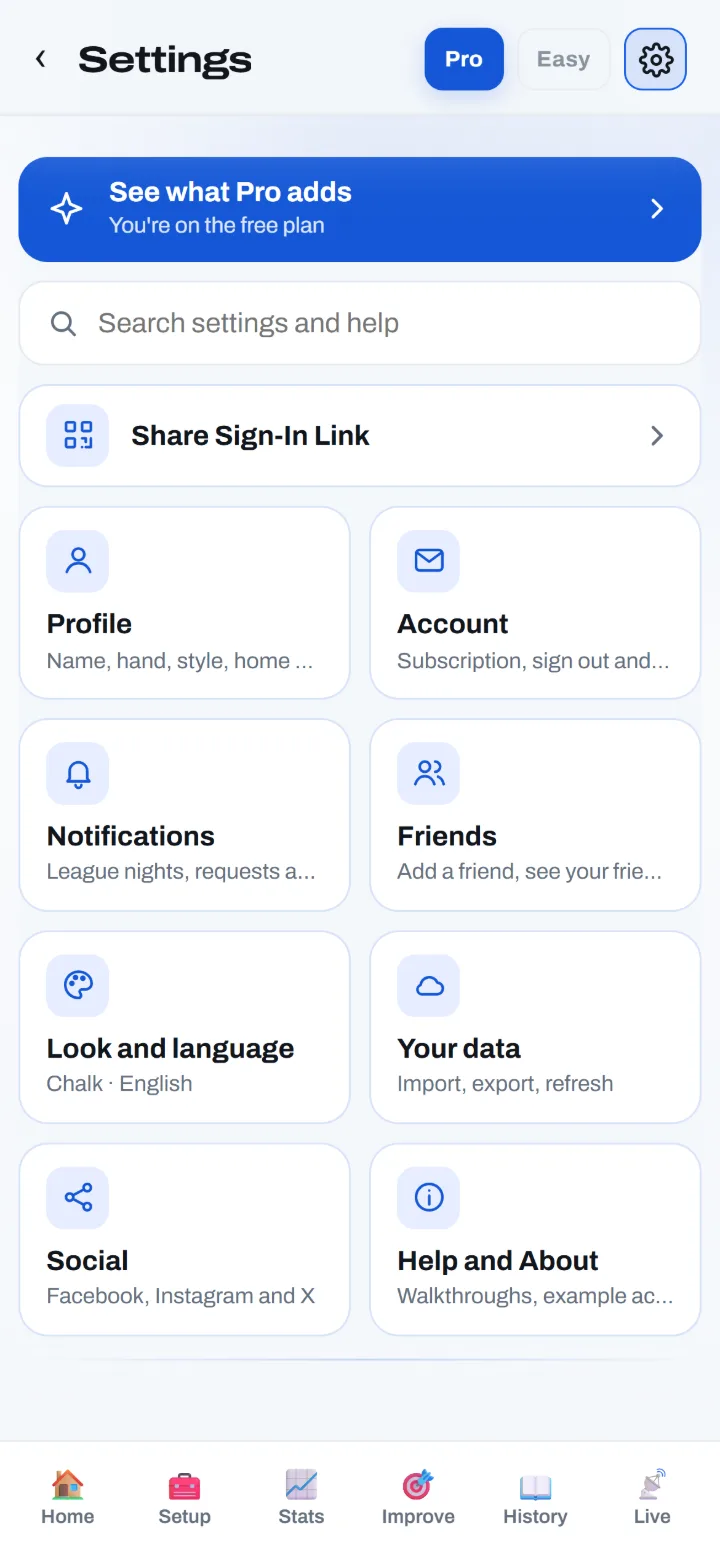
The banner at the top
The wide button at the top is about your plan. Tap it to open the Pro screen.
- On the free plan it says See what Pro adds and "You're on the free plan".
- In your first 30 days it says My Bowling Journey Pro and how long your Pro trial has left, like "Pro trial: 12 days left. No card on file; nothing is charged when it ends."
- With a subscription it says Manage subscription.
More on Pro and the free plan.
Search settings and help
- Tap Search settings and help and type a word, like "reminder" or "theme".
- The settings that match are listed, each with the tile it's in under it. Tap one to go straight there.
- The last line, Search help, looks for your words in the app's Help instead.
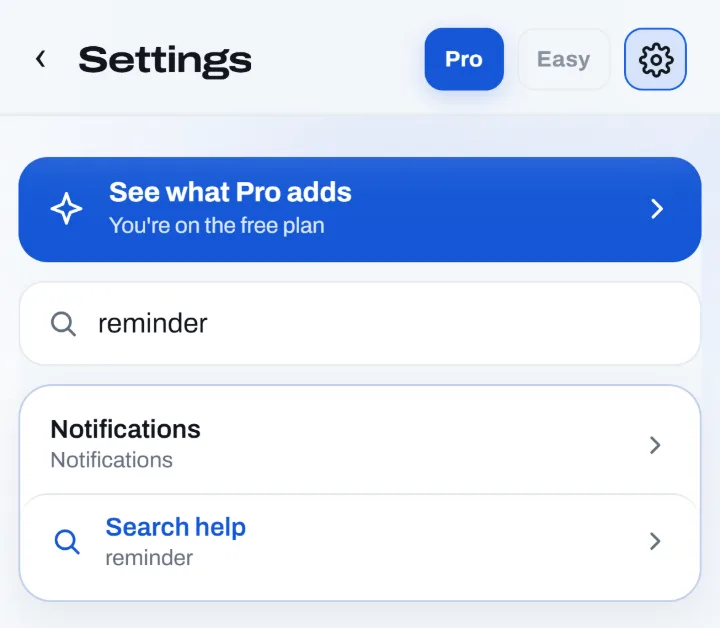
When nothing in Settings matches, it says No settings match that. and Search help is still there. Your keyboard's search key opens the first match, or Help when there isn't one.
Share Sign-In Link
Share Sign-In Link, under the search box, shows a QR code. A teammate scans it with their phone's camera and it opens the app's sign-in page. It doesn't sign them in as you: they sign in with their own account. Tap it again to put the code away.
The tiles
Each tile has a short line under its name saying what's in it.
- Profile: your name, hand and style, scorecard names, book average, home centers and the shot details pop-up. It opens its own screen. See Your profile.
- Account: Subscription, the Account card with Sign out, and the Danger Zone. See Account and signing out.
- Notifications: what your phone tells you about, the Weekly Recap and each league night's reminder. See Notifications.
- Friends: your friend code, requests, your friends and blocked bowlers. It opens its own screen. See Friends.
- Look and language: the language, App appearance, Celebrations and the Home screen widget. Its line shows your theme and language. See Changing the language and App appearance.
- Your data: Export, Import scores and Refresh from the Cloud. See Exporting and importing files and Refresh from the Cloud.
- Social: the app's Facebook, Instagram, X, TikTok and YouTube pages. See Social, About & Legal.
- Help and About: Walkthroughs, the Example account, About & Legal with the Privacy Policy, the Terms of Service and the app's version, and Special thanks. See Walkthroughs, how-to videos and Help.
Notifications is only in the Android and iPhone apps, because the website can't send notifications. On the website there are seven tiles, and Help and About takes the last row on its own.
Inside a tile
A tile opens its cards, one under another. Tap a card's name to open or fold it. The cards you're most likely to need start open.
To get back to the tiles, tap Settings at the top left of the page. On Android, your phone's back button does the same.