 MY BOWLING JOURNEY
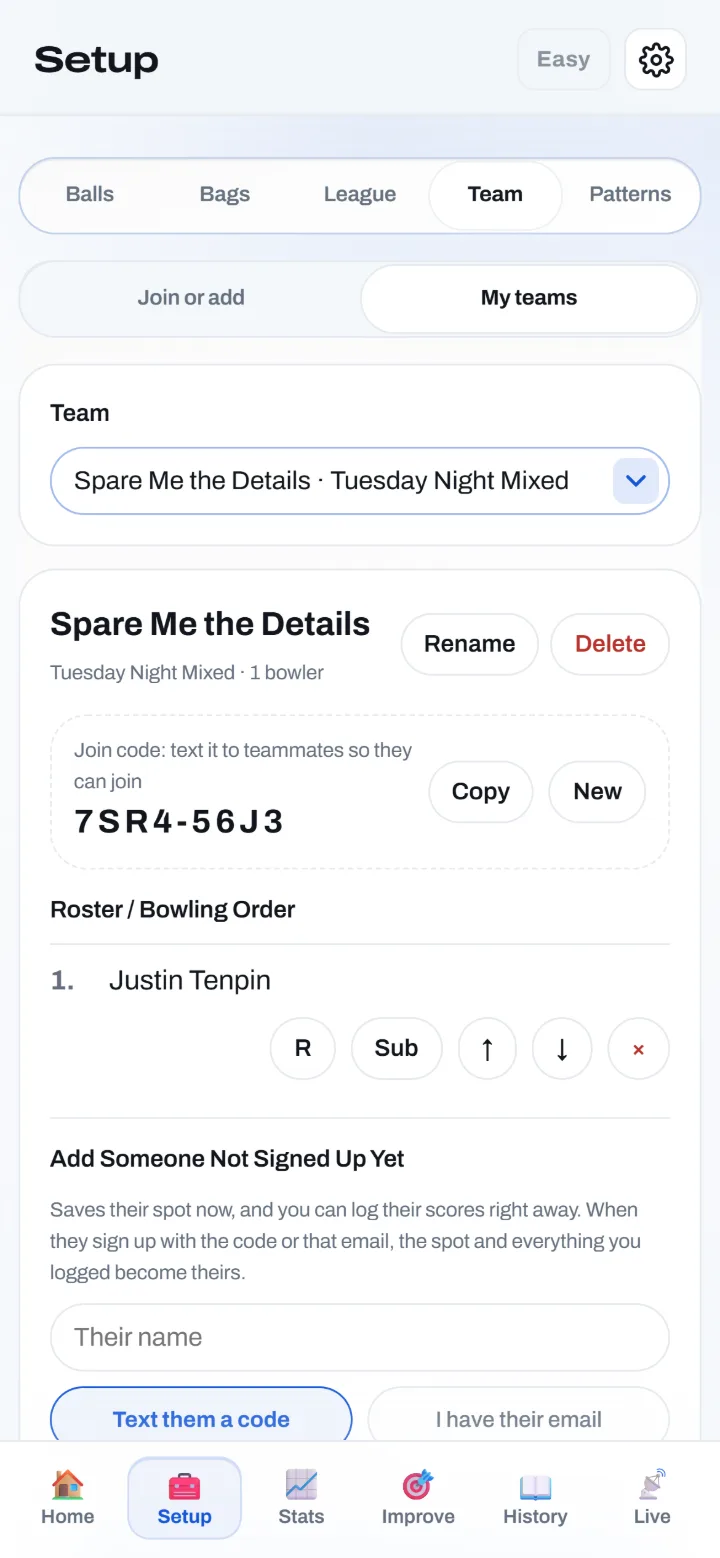
Your team lives on Setup > Team > My teams: its name, its join code and its roster in bowling order. It shows one team at a time. On more than one? Pick it in the Team box at the top, where each team shows with its league.
Not on a team yet, My teams says "You're not on a team yet. Join or add one under Join or add." See Joining a team.
Make a team
Team not in the app yet? Make it. Your first team can also be made right after you add your league: see Adding your first league, team and bowlers.
- Go to Setup > Team > Join or add.
- Under Pick a league, pick the team's league. A team always belongs to a league.
- Under Add a team, tap + Add team.
- Type the Team name and tap Create team.
You're on the roster from the start, and My teams opens on the new team with its join code. If you're already on a team by that name in the league, the app says "A team with that name already exists in this league."
Setup > League has the same thing under each league: Add a team, a name and Add.
Name, Rename and Delete
The team's name heads the card, with its league and how many bowlers are on it, like "Tuesday Night Mixed · 4 bowlers".
- Rename: type the new name under Team Name and tap Save, or Cancel. Anyone on the team can rename it.
- Delete: only the bowler who made the team has it. The app asks first: "Delete "Spare Me the Details"? This removes the team, its roster and its match results. Everyone's scores stay, and no bowler accounts are deleted."
The join code
The team's code is under its name: "Join code: text it to teammates so they can join". Everyone on the team sees it.
- Copy copies it, to paste in a text.
- New makes a new code. The app asks first: "Make a new code? The old one stops working, so anyone you sent it to will need the new one."
A teammate who enters the code is on your team straight away. See Joining a team.
Roster / Bowling Order
The roster lists everyone in the order you bowl, numbered. Teammates with the app and spots for teammates who haven't signed up yet (their names in italics) are in one list. You're on it from the start, so a new team shows you alone.
The order matters on league night: Set up lists your teammates in this order, and when you score for the team, the turn passes down it. See Scoring for your team and for subs.
Each row has:
- R or L: the bowler's hand. Tap it to switch.
- Sub: tap it for a bowler who subs for the team. It reads Sub ✓ while it's on. A sub's nights in this league stay out of their combined average. On your own row, it means you sub for this team: see Bowling on more than one team.
- ↑ and ↓: move the bowler up or down the order.
- ×: take them off the roster. The app asks first, like "Take Ally Lane off the roster? Their scores stay."
Anyone on the team can change the order, the hands and who subs, and take off a spot for someone who hasn't signed up. Only the bowler who made the team can take off a teammate who has the app: the × on that teammate's row is there for them alone. You can always take yourself off with the × on your own row, or use Leave team on Setup > League (see Managing your leagues). Someone with the app who's taken off needs the join code to get back on.
Scores are kept by name, so two bowlers with one name would share one set of frames. If it happens, the roster says so, like "Two bowlers on this roster are called Ally. Scores are kept by name, so one of them should change their display name."
Add teammates
- Teammates with the app: text them the join code.
- Teammates who haven't signed up: Add Someone Not Signed Up Yet, under the roster. See Adding a teammate who isn't signed up.
Teammates with their own accounts are in Stats' Compare To under your team, and in your friends once you're on the team together. They see the nights you bowl for the team, not your practice, tournaments or other leagues. See Your privacy.
Free and Pro
The free plan covers one team, a team you sub for included. Once you're on one, tapping Create team stops with "The free plan covers one team, and you're already on one. Upgrade to Pro to add another?" Say yes to see what Pro adds. On Setup > League, Add a team gives way to More teams.