 MY BOWLING JOURNEY
Once your arsenal has more than four balls, a Group by row appears on the Arsenal card on Setup > Balls. And a ball you've stopped throwing can go to the archive, with every shot you logged with it kept.
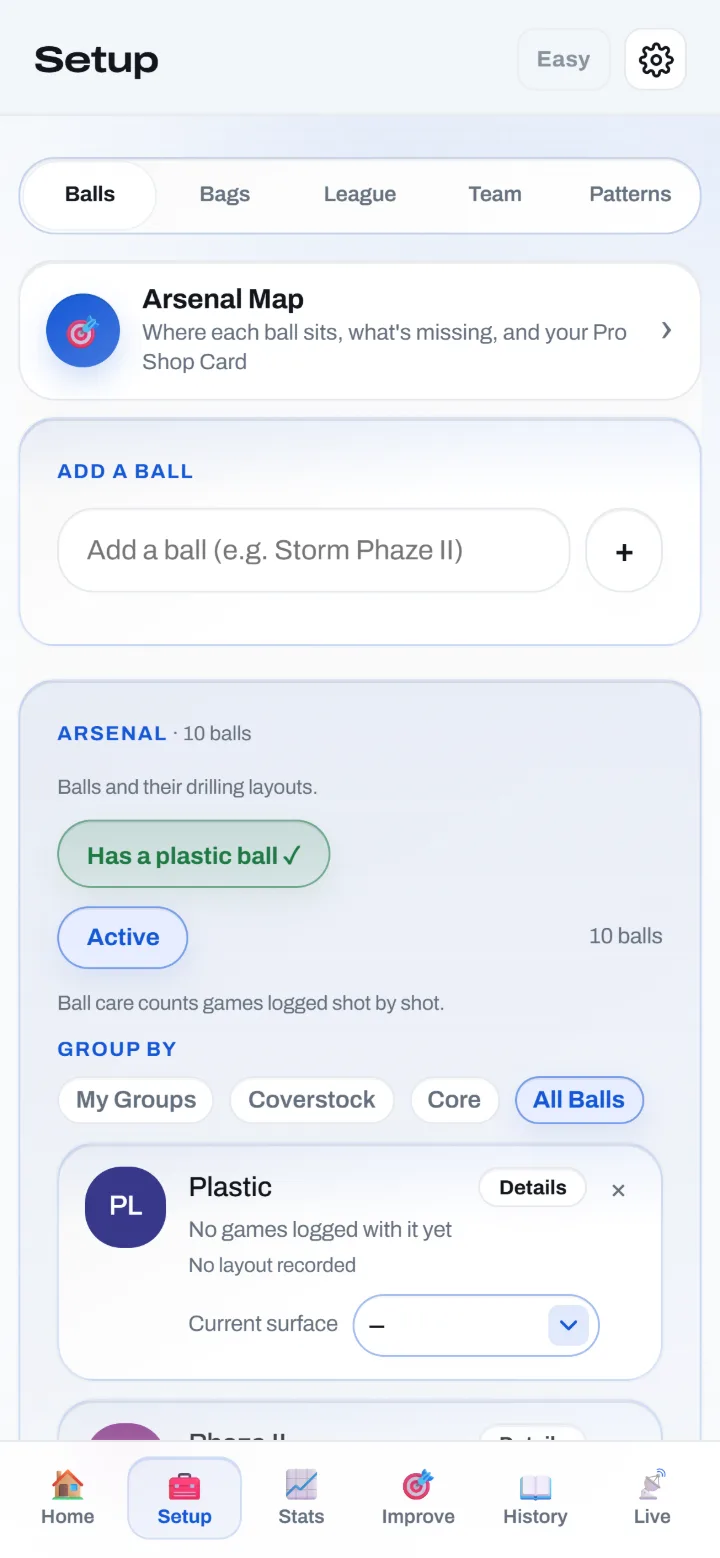
Group by
Tap one of the four:
- My Groups: your own groups.
- Coverstock: Solid, Pearl, Hybrid and Urethane, from each ball's specs.
- Core: Symmetric and Asymmetric.
- All Balls: one list. The card starts here each time you open it.
Each group gets a heading with its count, like "Strong - Smooth · 2". Empty groups aren't shown. A ball with no cover or core entered goes under Not specified. A ball in none of your groups goes under Ungrouped.
Your own groups
The first time you tap My Groups, the app starts you with seven groups bowlers already use: Strong - Smooth, Strong - Sharp, Benchmark - Smooth, Benchmark - Sharp, Weak - Smooth, Weak - Sharp and Urethane. They're yours to change, in the Your groups box:
- Rename a group by typing over its name.
- Delete takes a group away. It asks first. Its balls become ungrouped; none are removed.
- To add one, type a name in the last box, like Dry lanes, and tap Add.
To put a ball in a group:
- Tap Details on the ball.
- Under Specs, tap its group in the Group row. Ungrouped takes it back out.
Archive a ball you don't throw anymore
Sold it, cracked it, or just put it away? Archive it instead of removing it. Every shot you logged with it stays, so it can still answer "was that ball better on this pattern?"
- Tap Details on the ball.
- At the bottom, tap Archive this ball.
An Archive chip appears beside Active once something is in it. Tap it to see your archived balls, the most recent first, with the count on the right, like "2 archived". Open one to see the date you archived it and how many shots you logged with it, with its strike % once it has 50 shots or more.
An archived ball leaves the Active list, your bags, the ball list on Scoring, the Arsenal Map and ball care. A night you bowled with it still shows it where you used it.
Bought it back? Open it from Archive and tap Throwing it again. It's back on Active and back in the bags it was packed in, with everything it had.
Remove a ball
- Tap the × beside the ball's Details button.
- Tap Remove, or Cancel to keep it.
Removing takes the ball off your list along with its specs, layout, ball care and its place in your bags. The shots you logged with it stay in your history and Stats. If you might want its numbers later, archive it instead.